
[A] guide on how to switch to Linux
===========
unfinished
===========
With the ever-more-popular Enshittification of all your software & services, companies are making it clear they do not care about their users. You're not even a wallet to them, you're just a number to show to investors and shareholders.
Need to digitally sign a PDF? You must pay a subscription, and in the meantime, do you want to talk to our
chatbot?
Ads on your TV? Or in the start menu of your Operating System? Just run this script from GitHub and all
your problems will go away!
You must create an online account to use your computer. But don't worry our engineers are hard at works to change that.
Sidenote: Please don't run a random script off the internet without trusting the source or content of the script.
If you must use one of those Windows Debloat tool; here is one I trust and have personally used: Winutil by ChrisTitusTech
More and more people are fed up with the current trends, and are trying to get back some control where they can.
This is the reason a lot of people are ditching Microslop Windows, the most popular desktop Operating System, for macOS or Linux. This is also why I am making this guide, in the hope of making it easier for someone to make that change.
Why Linux over Apple's Walled Garden?
First, and I think this is the main reason, price. Apple devices and their accessories carry a heavy premium. Apps are less likely to be free, and you are locked into their hardware ecosystem. Have fun buying a USB-C dock for your $2,000 laptop
Secondly, while Apple hardware is undeniably premium, their software ecosystem can be incredibly restrictive.
For example, I used to own an iPhone 13 mini. Hardware-wise, it was fantastic. It was slim, felt premium, fit great in my pocket and took nice pictures. But it would constantly nag me to buy iCloud storage because it was automatically uploading my photos.
Simple enough, I thought. I'll just disable iCloud.
Warning: some pictures you are trying to delete are not locally
downloaded. You may lose data if you continue.
How do I download all my uploaded pictures, back on my phone?
Well, obviously, you just select all elements in your gallery, click share and wait an hour for the share popup to open, which means all pictures were downloaded. if your phone doesn't crash in the process...
To come back to the question: why choose Linux?
Because Linux gives you back ownership.
When people say Linux is "Free", they mean it as in free beer (price), but also free as in free speech (liberty).
Think of Open Source software like buying a phone that comes with the complete engineering schematics and the factory molds used to build it. If you didn't like how the volume buttons worked, you would have the right and the blueprints to take it apart and rebuild it exactly how you wanted.
Now of course, not everyone has the skills or equipment required to do so, but someone out-there does. And that's the beauty of it. Someone runs into a problem, or has a good idea. They share it on forums, development boards. Someone with the required skills develops it, another refines it, polishes it. And what you end up with is good software, that respects you, and is Free.
With Linux, you are free from poor decisions pushed by shareholders. It gives you the freedom to actually own your computer again.
Choosing a distribution
You've heard me talk about Linux Distributions. But what is a Linux Distribution (or Linux distro) ? What even is Linux?
Linux is technically a Kernel, and not a full operating system. The Linux kernel acts as the interface between your hardware and the software.
A complete operating system is the combination of that kernel, a desktop interface, network manager, firewall, settings, etc. Essentially every application you deem necessary for the correct function of your system.
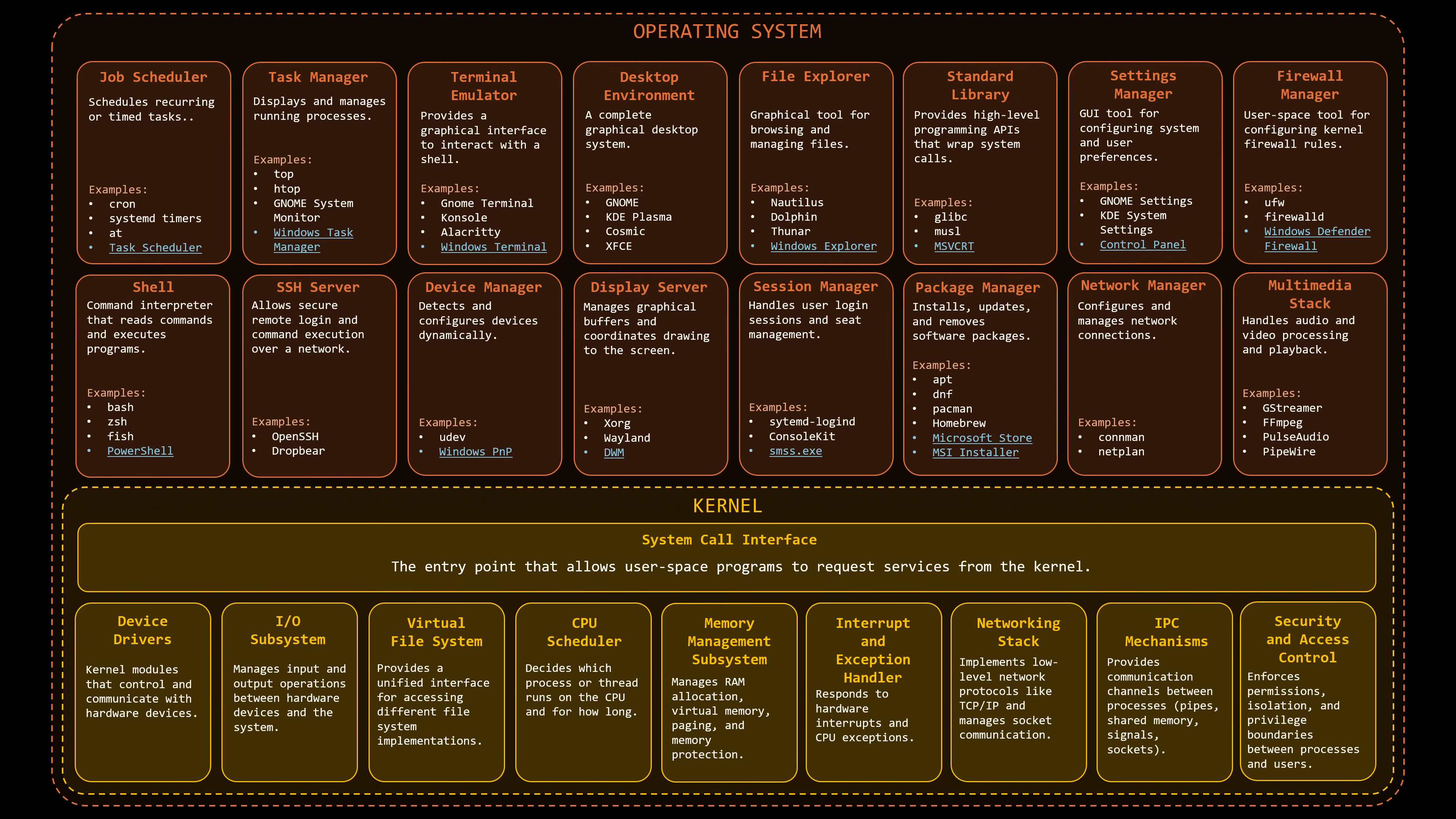
Think of Linux like an engine, and a distribution like a car. Cars aren't all made with the same goal: there are race cars, vans or regular daily drivers. Linux distributions are the same. Some of them are tailored to tackle a specific problem or serve a specific purpose. But they all have the same engine (Linux) under the hood.
Now you can imagine, due to the open source nature of Linux, and the countless amount of elements that compose a given distribution, choosing one distribution can be a paralyzing task.
Which one is best for me?
Which one should I use?
This one claims to be specific to my use
case, but it's niche and outdated, what should I do?
I just want a basic one that works. Is there one?
Truth is, you could have an endless debate on which distro is the best, or most adapted for you. But in the end the best distro for you is the one that just works.
To choose our distribution, let's stick to 3 main key points.
- Popularity: documentation and support needs to be easily available. In case you have an issue, the more popular a distribution is, the easier it is to find a solution.
- Looks: the desktop environment - what you actually interact with - needs to please your eyes.
- Functionality: if your objective is to play games, and the distro is focused on server use, you'll most likely run into a ton of headaches.
For this guide, I have chosen Fedora.
It's popular. It has different flavors in case you dislike the desktop environment. It's regularly updated, while not being bleeding edge and prone to first day issues.
A distribution flavor is a slightly modified version of a base distribution. Usually impacting the desktop environment
For example, Fedora has two main flavors: "Workstation" and "KDE". Workstation being the default Fedora flavor.
Workstation uses the Gnome desktop, while the KDE flavor uses KDE Plasma.
You could think of Gnome like macOS, and KDE like Windows. That being said, the easiest way to know which one you will prefer is to try it, which is, fortunately, quite easy.
Trying before installing
Let's clarify some things before going any further.
If you see Linux as a replacement for Windows, chances are you will be disappointed. The same way you would be disappointed buying an Xbox, expecting it to work the same way as a PlayStation.
What I mean by this is that, for example, while it is possible to run Windows programs, a program made for Linux will almost always be better. Games are kind of an exception due to Steam's and various Open Source projects' incredible work (Wine, DXVK, Proton, etc)
You will have to find alternatives for some of your programs. Now don't worry too much, the most popular programs are usually available such as Discord, Steam, Spotify, Chrome, Firefox, etc.
One good example that might apply to a lot of people is the Microsoft Office suite or Microsoft 365 Copilot as it's called now, hard to even tell it's an office suite anymore. MS Office can be replaced by ONLYOFFICE or LibreOffice, both are great alternatives but if you need to do professional work on them, you might find them limited in some way.
Hence, why you shouldn't expect your Xbox to behave like a PlayStation, there are benefits and caveats. Some things are better, some things are worse. The only way to tell for yourself is to actually try them.
Live Installer
Most Linux distributions provide what is called a "live installer". Which allows you to try hands-on the distribution without making any actual changes to your computer. This is quite useful to get a taste of what Linux is, or how the specific desktop environment looks and behaves, before making your decision.
Live installers come in the form of a USB stick you plug into your computer, and from which your computer runs the entire operating system directly, temporarily bypassing Windows entirely.
Let's use that live installer to try out of the two Fedora flavors I mentioned previously: Gnome and KDE Plasma. But to do so, we'll need to create it first. Thankfully, the process isn't so hard.
- Get a USB flash drive with at least 4GB of capacity.
- Download Fedora Media Writer. This program will allow us to easily create the live installer
Make sure to back up any data present on your USB flash drive. Creating the live installer will delete any data present on the drive.
-
Once installed, open Fedora Media Writer. Select
Download automatically
and press Next.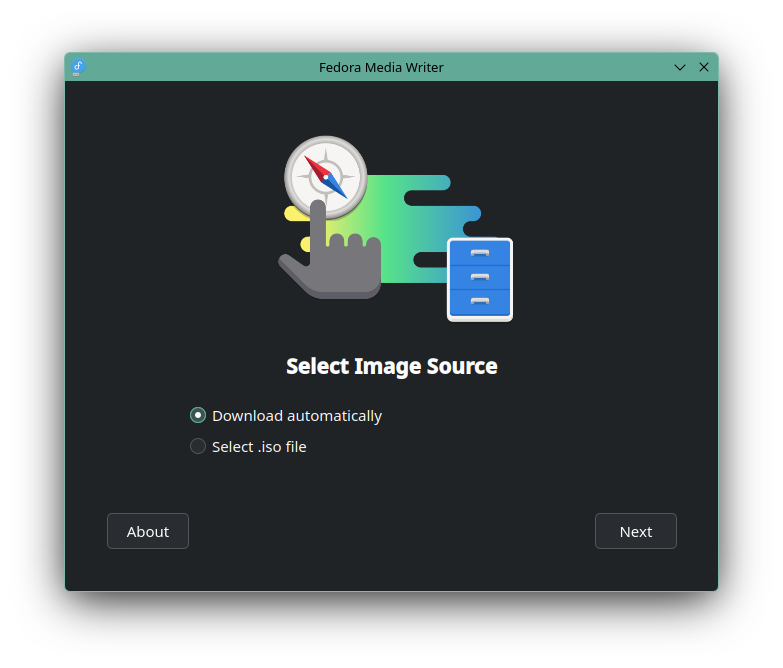
-
Select the
Official Editions
as well as your wanted flavor. For reminder, Fedora Workstation uses Gnome and KDE Plasma uses, well, KDE Plasma. I will select Workstation, but feel free to choose whichever one you want.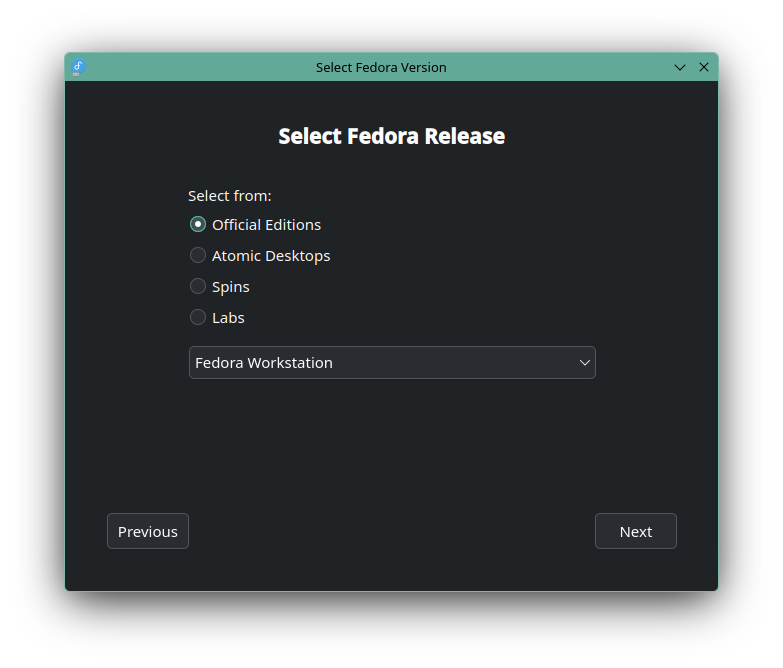
-
Select your Hardware Architecture (Most likely Intel/AMD 64bit), as well as your USB Drive. You can optionally check
Delete download after writing
.WARNINGMake sure to have selected the correct USB Drive, as any data present on that drive will be DELETED
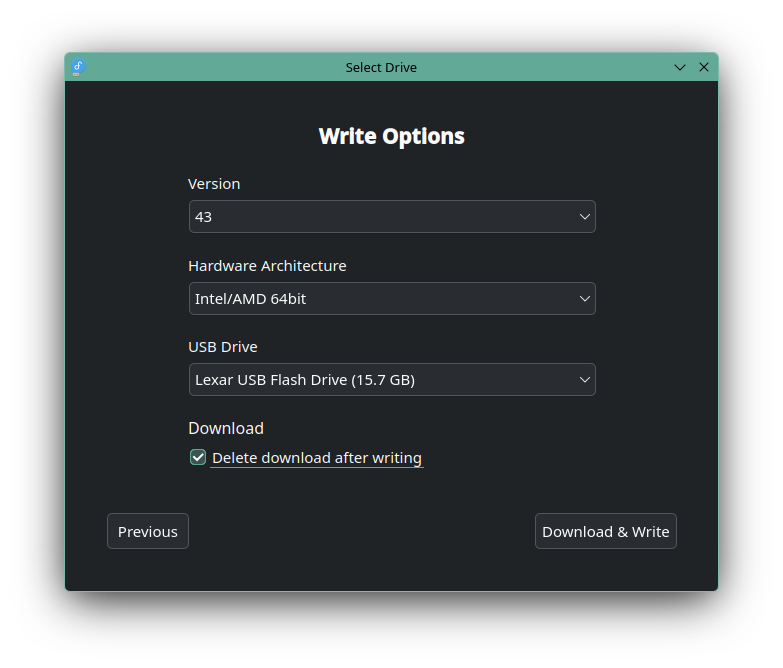
Once your USB Drive is ready you can turn off your computer.
Now is the best time to back up your files. Doing this now ensures you won't have to reboot back into windows if you wish to start the installation.
Booting from USB Drive
To boot the live installer, you will need to enter your motherboard's boot menu (or bios).
To enter the boot menu, you will need to press a key while your computer is starting. The key to press can often differ between manufacturers, so search online your motherboard model + boot menu key.
tip: instead of pressing the key once, just keep mashing it until the boot menu opensOnce you have entered the boot menu, there should be an entry with your USB Drive name. Select it for boot.
Installing
Now that you've booted the live installer, look around and try things out! Connect to the Wi-Fi, watch a YouTube video, play around in the settings. See how the desktop feels that's why we're doing this after all. If something is completely broken (like your Wi-Fi card not being recognized), it's better to find out now before commiting to anything.
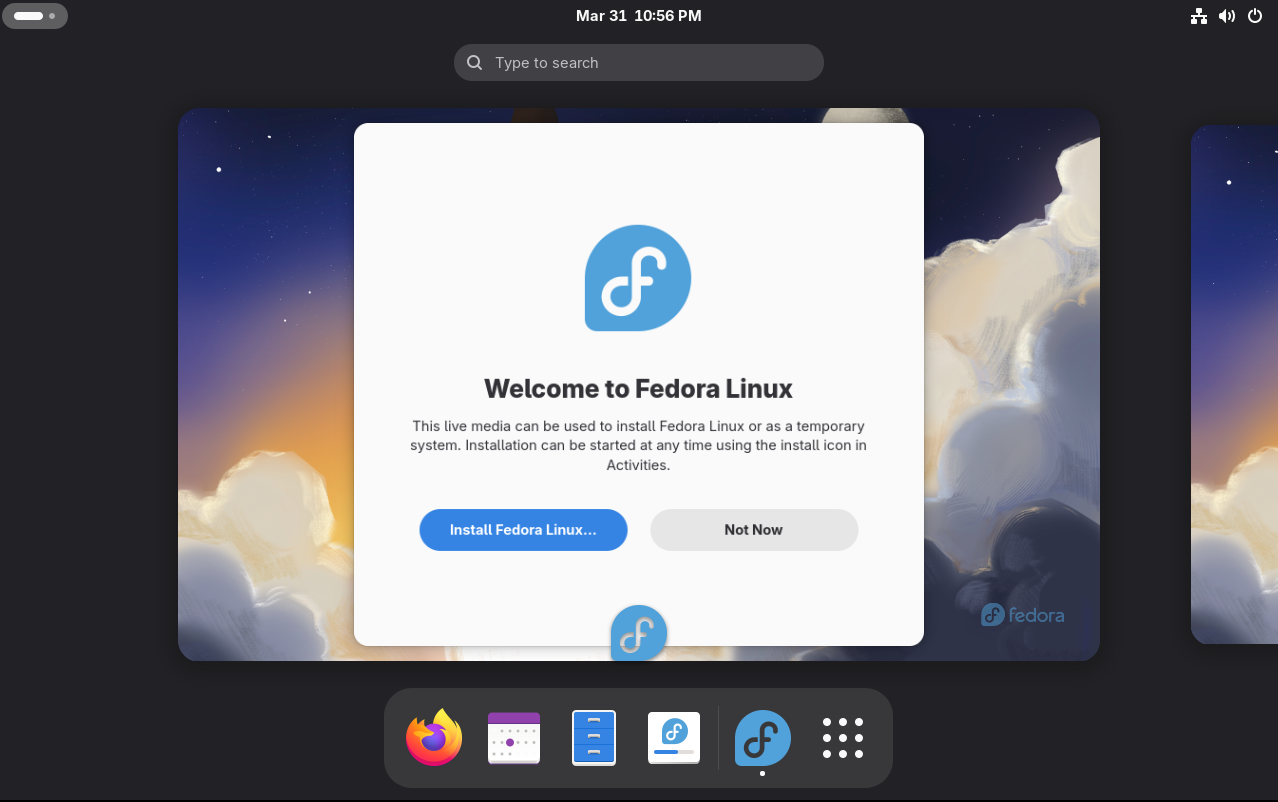
Once you looked around and have made up your mind, look for the Install Fedora Linux icon.
The installation process should be pretty straightforward: select your language, keyboard layout and time zone. The most important step is the Installation Destination.
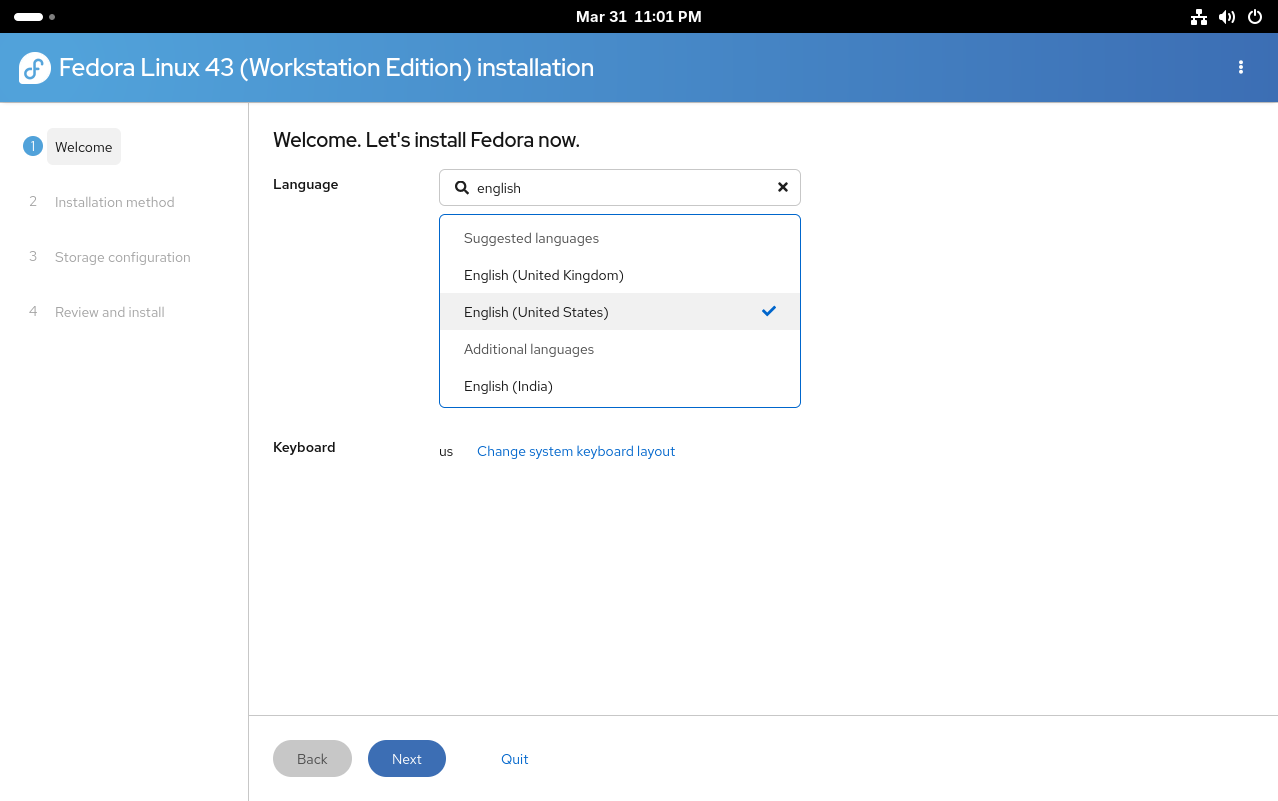
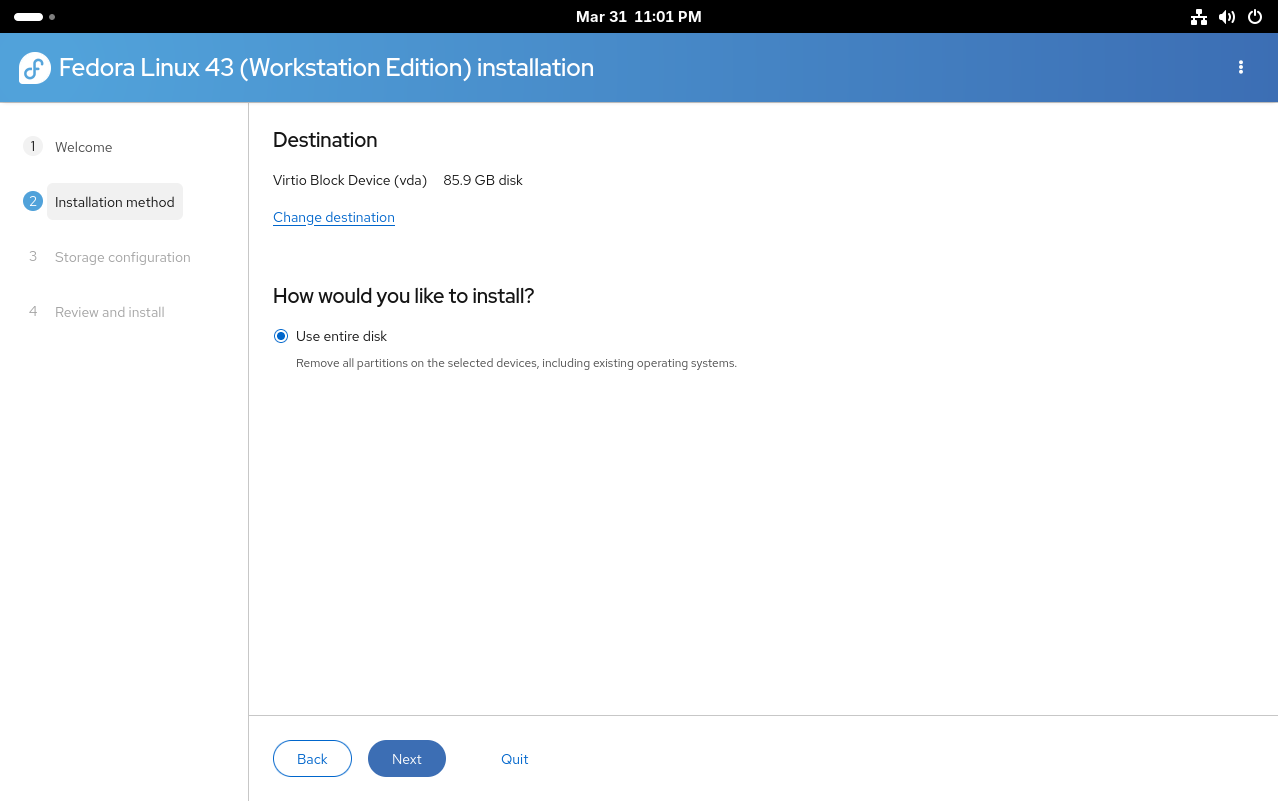
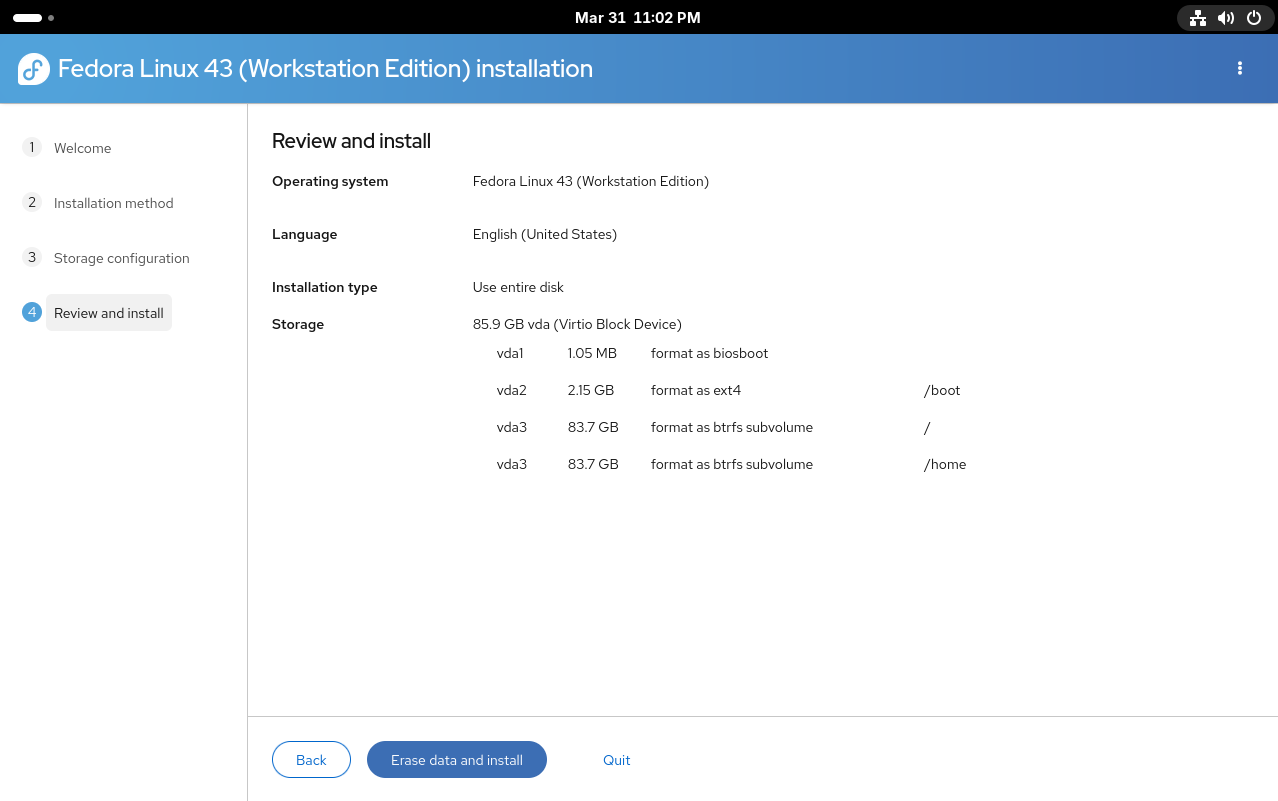
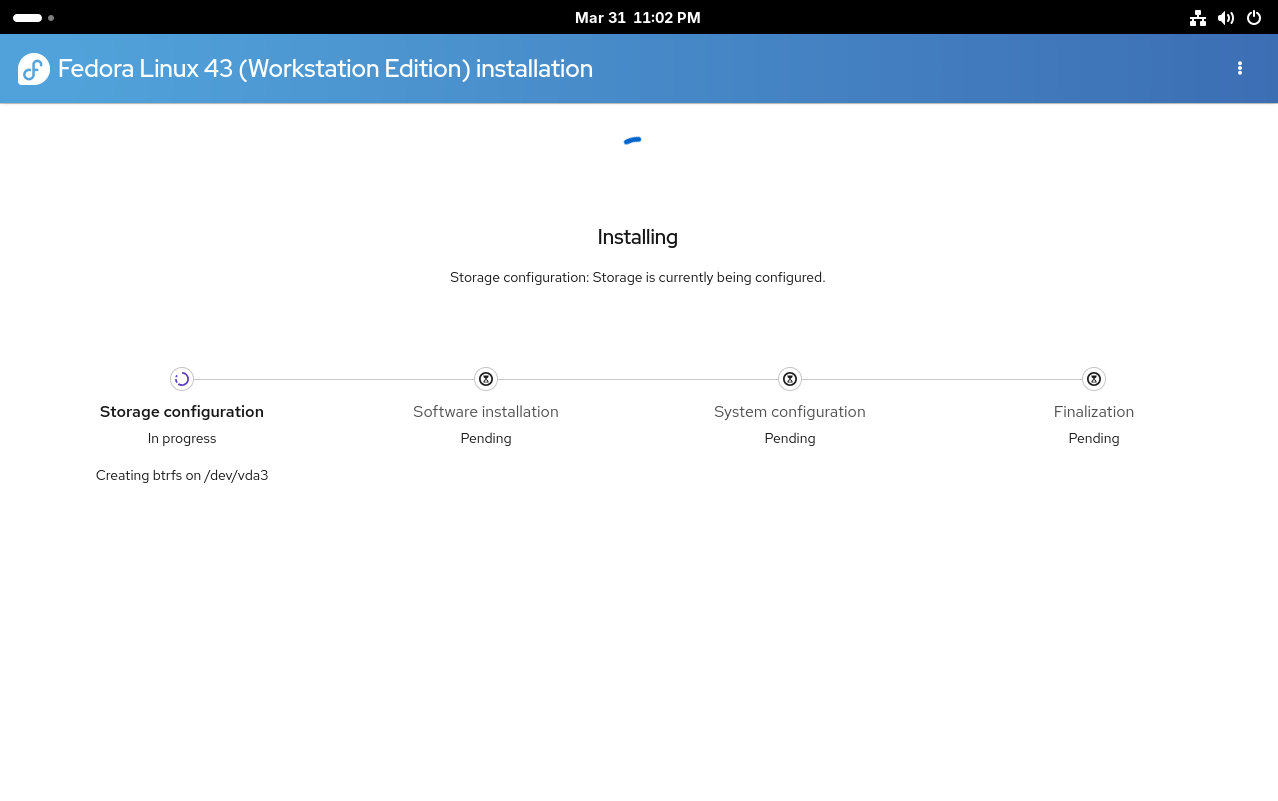
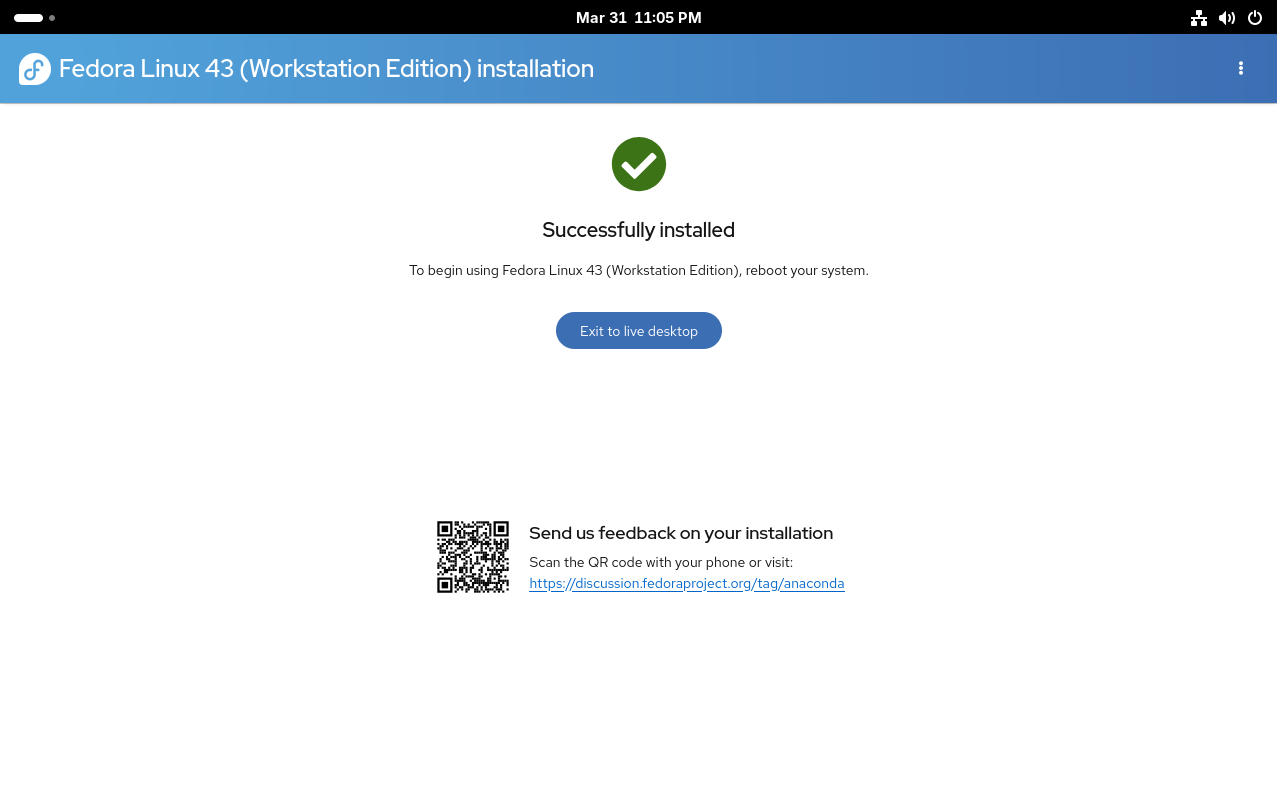
Selecting your entire drive and choosing to "Reclaim Space" will permanently delete Windows and all your files. Make sure your backups are secure before proceeding.
If this is your first time installing any operating system, I would recommend to install Linux on an entirely empty drive, or letting the installer wipe your drive clean. Dual booting (installing both Windows and Linux on the same drive) is possible, but I would not recommend it.
The installer will then do its installer things, and once it finishes, just turn off your computer, pull out the USB drive and boot it back up. It should boot right into Linux yippie!